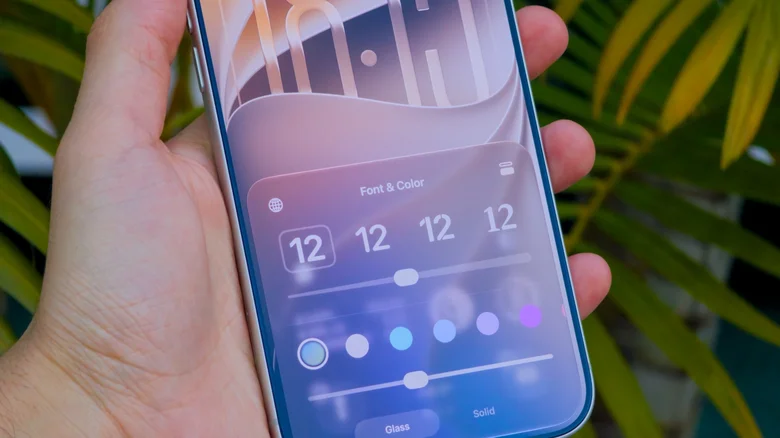
Apple has replaced the two-button Liquid Glass system on the iPhone with a single sliding control in iOS 27, giving users a continuous range between a fully see-through interface and a heavily tinted one. The change addresses one of the most persistent complaints since Liquid Glass debuted last year: that Apple’s glossy new look sacrificed legibility for style, and that the fixes on offer were too limited to satisfy everyone.
The new control sits in Settings under a freshly created Appearance section, which now gathers display and text-size options that used to be scattered across the Display & Brightness menu. Instead of choosing between the old Clear and Tinted presets, users drag a single slider left for more transparency or right for more opacity, with a live preview updating on screen as they move it, so there is no need to back out of Settings to check the result.
iOS 27 became publicly available on September 14, following weeks in developer and public beta, and the slider is one of several interface changes bundled into the release alongside new speed claims from Apple, including app launches it says are up to 30 percent faster. The rollout also coincides with the arrival of the iPhone 18 Pro and iPhone 18 Pro Max, which ship with iOS 27 preinstalled.
A slider years in the making
Liquid Glass arrived with iOS 26 as Apple’s biggest visual overhaul in years, giving menus, widgets, and app icons a translucent, frosted appearance. The reaction was mixed from the start. Some users appreciated the layered, glassy look; others found it made text and controls harder to read against busy backgrounds.
Apple’s first response came in iOS 26.1 with Tinted Mode, which lowered the opacity of Liquid Glass elements and boosted contrast. That gave users a second fixed option alongside the original Clear look, but it was still just a toggle between two states rather than a true range of choices.
From two presets to a continuous scale
The table below shows how Apple’s approach to Liquid Glass customization has evolved across recent updates.
| Release | Control offered | How it works |
|---|---|---|
| iOS 26 | Clear (default) | Fixed translucent look, no adjustment |
| iOS 26.1 | Clear or Tinted Mode | Toggle reduces opacity and raises contrast |
| iOS 27 | Continuous slider | Drag between fully transparent and fully tinted |
How to find and use it
To reach the new control, open Settings, tap Appearance, then select Liquid Glass. The midpoint is Apple’s default balance between transparency and tint. The setting applies system-wide, affecting Control Center, Home Screen folders, app overlays, and notification panels, though Apple keeps the Lock Screen’s glass intensity as a separate control.
Apple has not indicated whether a chosen slider position syncs across an iPhone, iPad, and Mac signed into the same Apple Account, and the company has not published an equivalent control for Apple Watch.
Compatibility and further options
iOS 27 supports the same range of devices as iOS 26, running on iPhone 11 and newer, including the iPhone SE (2nd generation). Apple’s compatibility list means the update reaches most iPhones sold in the past several years, not just its newest models.
For readers who want Liquid Glass gone almost entirely
Users who find even the most tinted end of the new slider too translucent can go further using Accessibility settings. Under Display & Text Size, turning on Reduce Transparency strips out most of the glass effect throughout the system. It is a more aggressive change than the Liquid Glass slider and is aimed at people who want the visual effect minimized rather than merely adjusted.
Apple has signaled it isn’t finished tuning the feature. The company has said an upcoming iOS 26.4 update for the prior operating system will let users disable Liquid Glass highlights separately, an indication that the translucent design is here to stay even as Apple keeps building in more ways to soften it.
Disclaimer: This content was partially produced with the help of AI tools.